Tuesday, May 31, 2011

30 Days With...Google Docs: Day 26

Day 26: OCR in Google Docs
There are enough different features and scenarios to explore with Google Docs that 30 Days With...Google Docs only scratches the surface in some ways. For example, here we are with 25 days down and a only a handful to go and we haven't yet examined the OCR (optical character recognition) feature.

I haven't done much with OCR in recent years. I recall being highly disappointed in the concept during the early days of mainstream consumer scanners. Back then OCR was about as accurate as Google Voice speech to text transcription. Just as Google Voice transcription tends to yield more gibberish than coherent sentences, OCR results made more work rather than making life easier. I was apprehensive, but hopeful that the OCR in Google Docs is better than what I remember.

30 Days With...Google Docs: Day 25

Day 25: Don't Lose Your Google Docs Data
Now that I have spent the last 24 days prolifically cranking out 30 Days With...Google Docs blog posts and feature articles on various subjects, I have a fair amount of content built up in Google Docs. So, the question I inevitably ask myself is "hey, what happens if Google crashes and my data disappears?"

What's that you say? You thought part of the point of the cloud was that it is where you put your data to protect it from disaster? Google has redundant backup to multiple data centers, so I have nothing to fear?
BackupJust as you back up local data to the cloud, you should back up your cloud data locallyWell, yes. It is true that for businesses and consumers that have crucial data stored locally, the cloud makes a great storage solution for backup data. It is ostensibly secure--although its up to you to do the research and make sure your online data is secure. It is off site, so whatever catastrophe or natural disaster that might occur and wipe out your local data won't get your backup data at the same time. But, the cloud isn't without some risks of its own.

30 Days With...Google Docs: Day 24

Day 24: Google Docs Drawing vs. Microsoft Visio
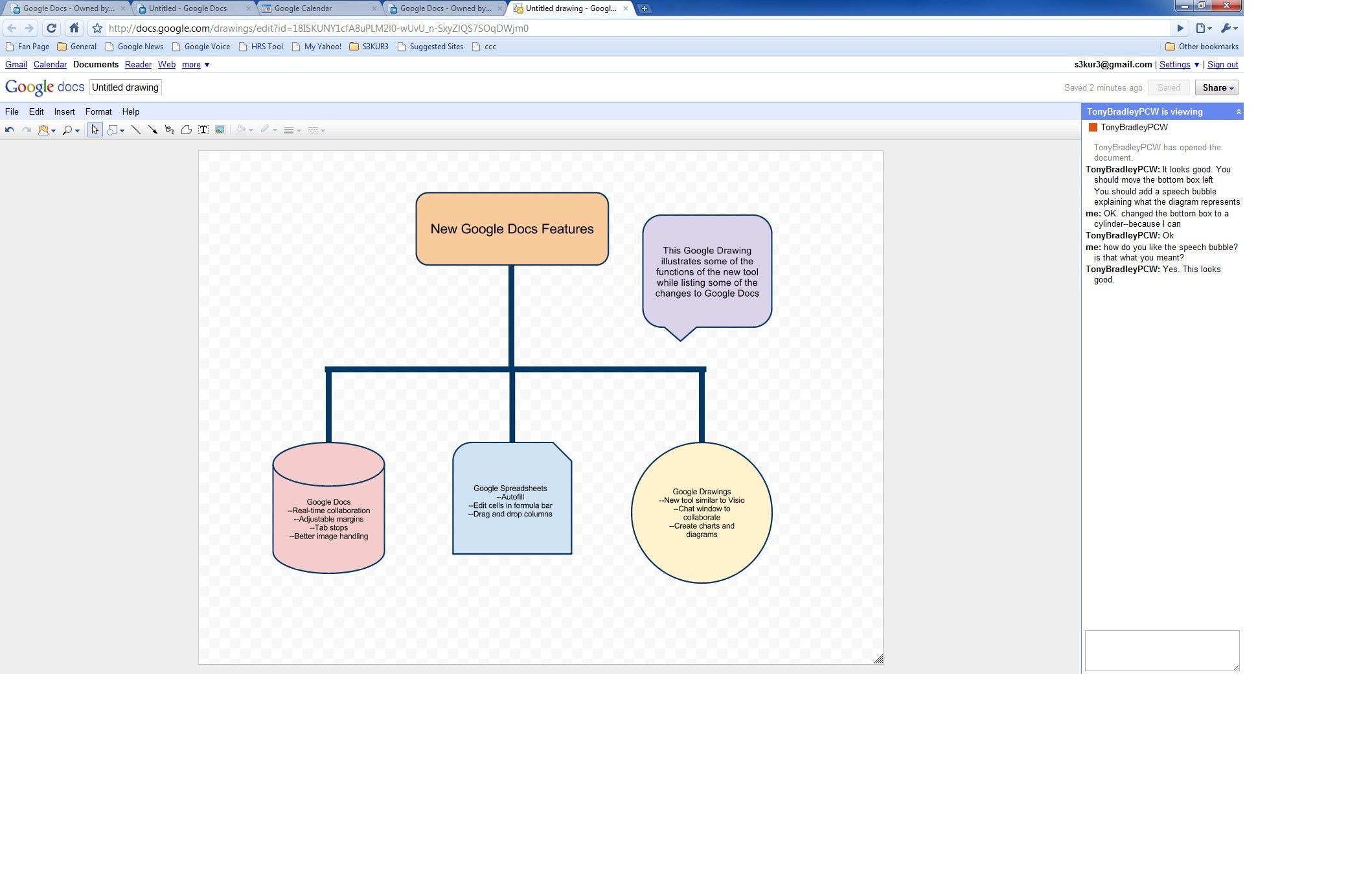
There is another tool buried in Google Docs that we haven't yet looked at during our 30 Days With...Google Docs--Drawing. The Microsoft Office equivalent, or counterpart, would be Visio, although Visio is an additional purchase that is not part of the Microsoft Office bundles.

While Drawing sounds like an art program--and it could be used as such to an extent--in the context of Google Docs, or office productivity, it is more about business drawings like flowcharts, organizational charts, or other charts or diagrams for business documents or presentations.
Google DocsGoogle Docs Drawing allows for online real-time collaboration on charts and diagramsYou can open a Drawing as a standalone document type by the Create New drop-down from the Google Docs home page and choosing Drawing. You can also add a Drawing as an element of the other doc types by using Insert on the tool menu and selecting Drawing.

30 Days With...Google Docs: Day 23

Day 23: Syncing Google With My iPhone
One of the things I relied on Microsoft Outlook for prior to embarking on the 30 Days With...Google Docs adventure was to sync my contacts and calendar events to my iPhone. Today we'll walk through how I set my iPhone up to sync with my information out in the Google-verse.

Keeping contact and calendar data synced with my iPhone is crucial. As I roam about, the iPhone is my lifeline to the world, and it needs to have current, accurate, contact and calendar information in order to be of any value.
Before this month my iPhone (and iPad for that matter) would simply sync all contact and calendar information from Microsoft Outlook every time I connect it to the USB port on my PC. Now, when I connect iTunes still syncs my music, photos, and apps, but the Microsoft Outlook data is gone.
Thankfully, Google figured out a way to leverage the Exchange Actice Sync capabilities of iOS to sync email, contacts, and calendar information from your Google account. Best of all, it syncs wirelessly on the fly so I am not dependent on tethering my iPhone to my PC to make sure I have the most current information.

30 Days With...Google Docs: Day 22

Day 22: What If You Can't Connect to Google Docs?
We have gotten through three weeks of 30 Days With...Google Docs. We are entering the home stretch of the project, and we haven't addressed one of the most crucial questions to ask when considering Google Docs--what do you do when you can't connect to Google Docs?

One of the first questions that comes to mind for me whenever anyone talks about "the cloud" is, "that's great, but what do you do if the service has an outage, or you just can't find an Internet connection?" With free Wi-Fi on virtually every corner, it is not the issue it once was, but it is possible that you may not be able to connect to Google Docs for some reason, and then what? You just can't get any productive work done?
Google GearsGoogle pulled the plug on Gears more than a year agoI am not just picking on Google Docs, either. If you follow my writing, you will notice a theme. The idea of what happens when you rely on a cloud service but can't connect to the cloud is a recurring pet peave. I mentioned it as a fatal flaw for the Chromebook, and I pointed it out as a serious concern when it comes to cloud music streaming services.
Well, some of you may be familiar with Google Gears, and using Google Gears to sync content for offline access. The problem with Google Gears is that Google pulled the plug on supporting Gears as an offline content solution a year ago.

30 Days With...Google Docs: Day 21

Day 21: Chrome Extensions for Google Docs
There are other benefits to using a Web-based productivity platform aside from the ability tocollaborate online in real-time. For today's 30 Days With...Google Docs post, we'll explore another one of those benefits--the ability to extend functionality with browser add-ons.

Actually, let me start out with the caveat rather than tossing it in at the end--Microsoft Office has thousands of add-ins as well, so I guess that being Web-based really has little to do with whether or not new features and capabilities can be added in.
ChromeThe Chrome browser has a number of extensions that are very useful for Google DocsEven though it may not be something that sets Google Docs uniquely apart from Microsoft Office, there are awide variety of applets and tools that can be tacked on to a Web browser to provide additional features and functionality for Google Docs. Let's take a look at some.

30 Days With...Google Docs: Day 20

Day 20: Collaborating in Real-Time With Google Docs
I think I may have been a tad remiss. Granted, I did cover the Google Docs Discussions feature for exchanging comments and editing a document in real-time, but here we are on day 20 of 30 Days With...Google Docs and I haven't really covered one of the defining features of Google Docs--real-time collaboration.

I have spent years "collaborating" the old-fashioned way. I write a draft of a document, and I send it off to a peer or editor for review. They take their turn commenting and editing and send it back to me. I then take my turn revising the document based on the comments made, and so it goes. Collaborating like that is inefficient--like trying to have a conversation on a walkie-talkie where only one party can speak at a time.