Showing posts with label 30 Days With...Google Docs. Show all posts

Tuesday, May 31, 2011

30 Days With...Google Docs: Day 30

Day 30: What I Learned from Spending 30 Days With...Google Docs
Well, I made it. After a decade of daily reliance on Microsoft Office, I managed to survive an entire month using Google Docs. So, what has the 30 Days With...Google Docs project taught me, and what do I do now that the project is over?

I have to admit that the experience has given me much greater respect for Google Docs. As I pointed out in the Day 29 post, there are a number of things that I found to be unique benefits of Google Docs that Microsoft engineers should be looking to emulate in Microsoft Office.
Google DocsGoogle Docs performed admirably over the course of the last 30 days.On the other hand, there were also a number of things I really didn't like about Google Docs. One thing that didn't even make the list--because it is a proprietary issue that is probably not the fault of Google Docs--is that I repeatedly ran into formatting issues copying and pasting text from a Google Docs document into the PCWorld content publishing tool. Annoying things would happen, like taking a multi-word URL link in an article, and instead linking each individual word. Suddenly, five links in an article would turn in to 30 links, and I would have to go back through and manually clean those up.

30 Days With...Google Docs: Day 29

Day 29: Five Things I Like Most About Google Docs
The 30 Days With...Google Docs project has been a worthwhile experiment for me. Despite mycomplaints, pet peaves, and whining, there were also many things about Google Docs that pleasantly surprised me. Here are the five things I liked most about using Google Docs this month.

1. The Cloud. Having access to my productivity apps and data from virtually any Web-connected device, anywhere, and any time has its advantages. Google Docs provides a relatively consistent experience across different devices from Windows and Mac PCs, to Android smartphones and tablets,and on my iPad and iPhone--although Google Docs from theiPhone had some issues.
Google DocsIt wasn't all whining and pet peaves, there are some things I like about Google Docs too.2. Collections. It took a little getting used to, but once I familiarized myself, the idea oforganizing and categorizing files in collections rather than the files and folders I am used to on my PC made great sense. A file can only exist in one folder (although you could place copies or shortcuts in other folders), but the Google Docs collections let you organize a single file in a variety of ways. For example, a spreadsheet calculating expenses for a golf league can be tagged as a "spreadsheet", "expenses", and "golf" collections so that you can find and work with it in whatever way makes sense to you.

30 Days With...Google Docs: Day 28

Day 28: My Five Biggest Google Docs Complaints
We've come down to the wire on 30 Days With...Google Docs. The final three days will be spent reflecting on the experience, starting today with my five biggest pet peeves about Google Docs.

1. Browser Tabs. While many readers commented--some more nicely than others--or sent me emails to explain that there is an option in Document Settings to open new items in the current window, that setting seems to have a very limited scope. Although opening a document will use the same tab Google Docs is already in, clicking Documents from that open document will open Google Docs in a new tab.

30 Days With...Google Docs: Day 27

Day 27: Google Docs Scripts and Power Tips
With the month coming to a close on the 30 Days With...Google Docs project, I think we have established that Google Docs is more than adequate for creating simple documents,spreadsheets, presentations, and other content. Now, let's take a quick look at some of the features that power-users might appreciate.

For more advanced users, Google offers Google LookUp and Google Finance to automatically search for and add information to cells in your spreadsheet.By adding Google LookUp syntax to a spreadsheet cell, you can populate the cell with information stock data, country demographics, celebrity details, planets of the solar system, and more. Google says that the data can come from any Web site, but that certain sites like the CIA Factbook and Wikipedia tend to appear as sources more often than others.
Google DocsGoogle Docs has advanced features for power users too.To use Google LookUp, type "=GoogleLookUp("entity";"attribute")" in a cell. For example, if you want to populate a cell with "=GoogleLookUp("Michael Jordan" ; "average points per game")" Google LookUp searches to find out what Michael Jordan's average points per game was, and automatically populates the cell with "31.5".

30 Days With...Google Docs: Day 26

Day 26: OCR in Google Docs
There are enough different features and scenarios to explore with Google Docs that 30 Days With...Google Docs only scratches the surface in some ways. For example, here we are with 25 days down and a only a handful to go and we haven't yet examined the OCR (optical character recognition) feature.

I haven't done much with OCR in recent years. I recall being highly disappointed in the concept during the early days of mainstream consumer scanners. Back then OCR was about as accurate as Google Voice speech to text transcription. Just as Google Voice transcription tends to yield more gibberish than coherent sentences, OCR results made more work rather than making life easier. I was apprehensive, but hopeful that the OCR in Google Docs is better than what I remember.

30 Days With...Google Docs: Day 25

Day 25: Don't Lose Your Google Docs Data
Now that I have spent the last 24 days prolifically cranking out 30 Days With...Google Docs blog posts and feature articles on various subjects, I have a fair amount of content built up in Google Docs. So, the question I inevitably ask myself is "hey, what happens if Google crashes and my data disappears?"

What's that you say? You thought part of the point of the cloud was that it is where you put your data to protect it from disaster? Google has redundant backup to multiple data centers, so I have nothing to fear?
BackupJust as you back up local data to the cloud, you should back up your cloud data locallyWell, yes. It is true that for businesses and consumers that have crucial data stored locally, the cloud makes a great storage solution for backup data. It is ostensibly secure--although its up to you to do the research and make sure your online data is secure. It is off site, so whatever catastrophe or natural disaster that might occur and wipe out your local data won't get your backup data at the same time. But, the cloud isn't without some risks of its own.

30 Days With...Google Docs: Day 24

Day 24: Google Docs Drawing vs. Microsoft Visio
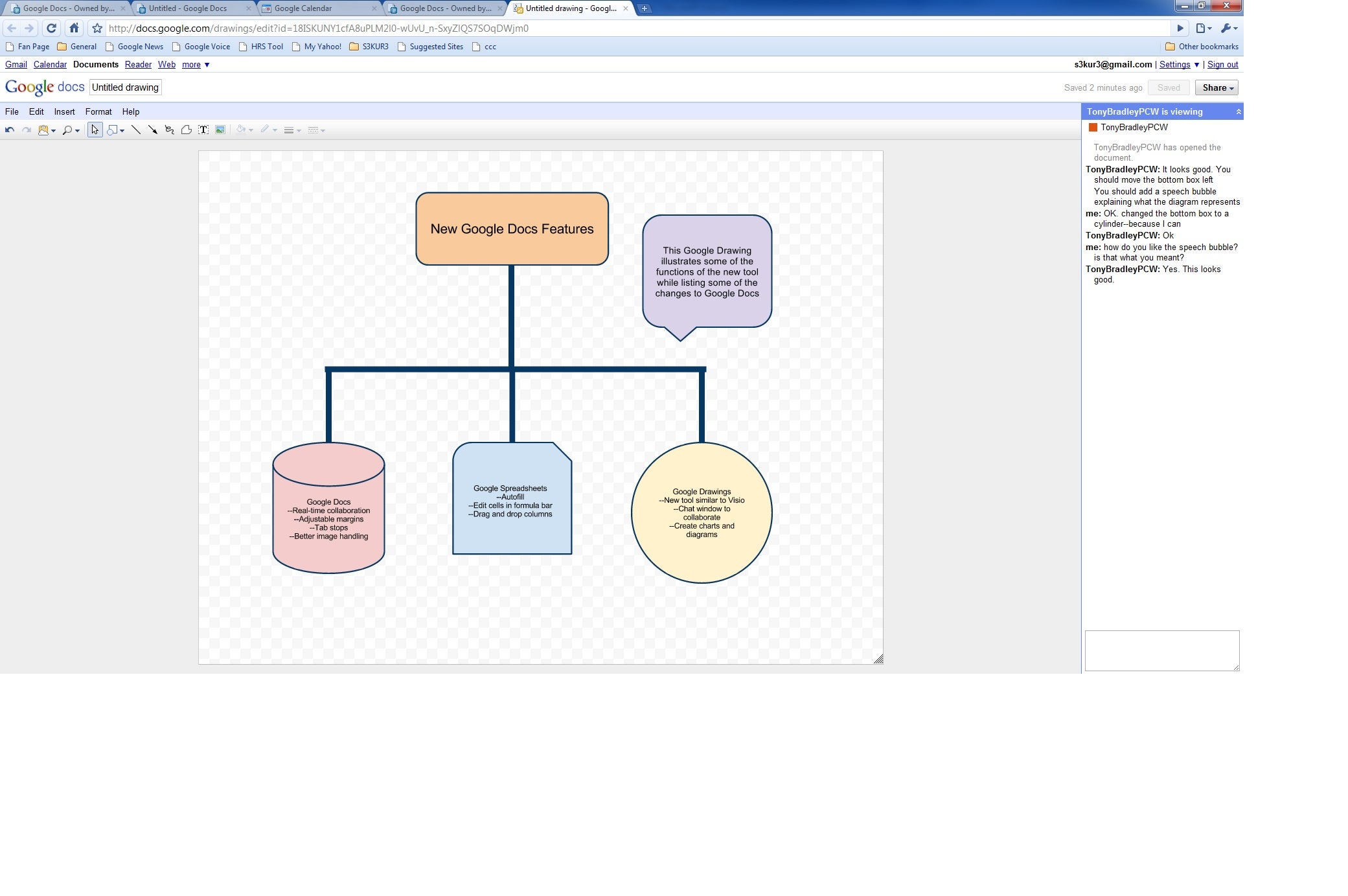
There is another tool buried in Google Docs that we haven't yet looked at during our 30 Days With...Google Docs--Drawing. The Microsoft Office equivalent, or counterpart, would be Visio, although Visio is an additional purchase that is not part of the Microsoft Office bundles.

While Drawing sounds like an art program--and it could be used as such to an extent--in the context of Google Docs, or office productivity, it is more about business drawings like flowcharts, organizational charts, or other charts or diagrams for business documents or presentations.
Google DocsGoogle Docs Drawing allows for online real-time collaboration on charts and diagramsYou can open a Drawing as a standalone document type by the Create New drop-down from the Google Docs home page and choosing Drawing. You can also add a Drawing as an element of the other doc types by using Insert on the tool menu and selecting Drawing.

30 Days With...Google Docs: Day 23

Day 23: Syncing Google With My iPhone
One of the things I relied on Microsoft Outlook for prior to embarking on the 30 Days With...Google Docs adventure was to sync my contacts and calendar events to my iPhone. Today we'll walk through how I set my iPhone up to sync with my information out in the Google-verse.

Keeping contact and calendar data synced with my iPhone is crucial. As I roam about, the iPhone is my lifeline to the world, and it needs to have current, accurate, contact and calendar information in order to be of any value.
Before this month my iPhone (and iPad for that matter) would simply sync all contact and calendar information from Microsoft Outlook every time I connect it to the USB port on my PC. Now, when I connect iTunes still syncs my music, photos, and apps, but the Microsoft Outlook data is gone.
Thankfully, Google figured out a way to leverage the Exchange Actice Sync capabilities of iOS to sync email, contacts, and calendar information from your Google account. Best of all, it syncs wirelessly on the fly so I am not dependent on tethering my iPhone to my PC to make sure I have the most current information.

30 Days With...Google Docs: Day 22

Day 22: What If You Can't Connect to Google Docs?
We have gotten through three weeks of 30 Days With...Google Docs. We are entering the home stretch of the project, and we haven't addressed one of the most crucial questions to ask when considering Google Docs--what do you do when you can't connect to Google Docs?

One of the first questions that comes to mind for me whenever anyone talks about "the cloud" is, "that's great, but what do you do if the service has an outage, or you just can't find an Internet connection?" With free Wi-Fi on virtually every corner, it is not the issue it once was, but it is possible that you may not be able to connect to Google Docs for some reason, and then what? You just can't get any productive work done?
Google GearsGoogle pulled the plug on Gears more than a year agoI am not just picking on Google Docs, either. If you follow my writing, you will notice a theme. The idea of what happens when you rely on a cloud service but can't connect to the cloud is a recurring pet peave. I mentioned it as a fatal flaw for the Chromebook, and I pointed it out as a serious concern when it comes to cloud music streaming services.
Well, some of you may be familiar with Google Gears, and using Google Gears to sync content for offline access. The problem with Google Gears is that Google pulled the plug on supporting Gears as an offline content solution a year ago.

30 Days With...Google Docs: Day 21

Day 21: Chrome Extensions for Google Docs
There are other benefits to using a Web-based productivity platform aside from the ability tocollaborate online in real-time. For today's 30 Days With...Google Docs post, we'll explore another one of those benefits--the ability to extend functionality with browser add-ons.

Actually, let me start out with the caveat rather than tossing it in at the end--Microsoft Office has thousands of add-ins as well, so I guess that being Web-based really has little to do with whether or not new features and capabilities can be added in.
ChromeThe Chrome browser has a number of extensions that are very useful for Google DocsEven though it may not be something that sets Google Docs uniquely apart from Microsoft Office, there are awide variety of applets and tools that can be tacked on to a Web browser to provide additional features and functionality for Google Docs. Let's take a look at some.

30 Days With...Google Docs: Day 20

Day 20: Collaborating in Real-Time With Google Docs
I think I may have been a tad remiss. Granted, I did cover the Google Docs Discussions feature for exchanging comments and editing a document in real-time, but here we are on day 20 of 30 Days With...Google Docs and I haven't really covered one of the defining features of Google Docs--real-time collaboration.

I have spent years "collaborating" the old-fashioned way. I write a draft of a document, and I send it off to a peer or editor for review. They take their turn commenting and editing and send it back to me. I then take my turn revising the document based on the comments made, and so it goes. Collaborating like that is inefficient--like trying to have a conversation on a walkie-talkie where only one party can speak at a time.

30 Days With...Google Docs: Day 18

Day 18: Google Docs Translations Don't Make Sense
One of the features touted by Google for Google Docs is the ability to easily translate documents into 53 different languages. For day 18 of 30 Days With...Google Docs I decided to put those translations to the test.

I don't do a lot of work internationally that would require me to have to translate my documents from English to some other language, or to take documents I receive in other languages and translate them into English. So, for the purposes of testing out the translation capabilities of Google Docs I enlisted my Twitter followers to help out.

30 Days With...Google Docs: Day 17

Day 17: Uploading Folders of Data to Google Docs


I need access to my files. 17 days into the 30 Days With...Google Docs process may seem a bit late, but with each passing day I am finding more and more that I need all of the files I normally work with in my Documents folder in Windows 7 on my local computer to be available to me in Google Docs.
Over the course of the past 16 days I have covered the basics of working with and organizing files in Google Docs, and a little bit on some of the fidelity issues with converting Microsoft Office files into Google Docs formats. But, so far my efforts have focused mainly on uploading or downloading single files.

Monday, May 16, 2011

30 Days With...Google Docs: Day 15

Day 15: Google Docs Discussions Are Great for Collaborating...With Google

We have reached the half-way point for the 30 Days With...Google Docs project. On Day 14, I discussed the Discussions feature introduced in Google Docs earlier this year, and today I spent some time seeing how it works in the real world.


For the sake of those who skipped yesterday and can't spare the five minutes it would take to go read Day 14 first, let's recap. Google rolled out a new feature for Google Docs called Discussions which turns document comments into a message thread that appears to make collaboration a much more dynamic and efficient process. You can add individuals to the document Discussion by simply @-ing them--typing the "@" symbol, followed by their email address.

Saturday, May 14, 2011

30 Days With...Google Docs: Day 13

Day 13: Google Docs on the iPhone - Don't Try This at Home


I am really pushing the envelope on this mobile computing thing now. Here I sit, typing a 30 Days With...Google Docspost in Google Docs on my iPad over a Verizon 4G MiFi portable hotspot while sitting in the middle of a field at my daughter's soccer practice. But, we can push that envelope just a bit further, so today I am going to examine using Google Docs on a smartphone--specifically my iPhone.
If I had an Android smartphone, I could be using the Google Docs app, but I don't. There are a couple third-party apps for viewing Google Docs, but there is no app for actually working in Google Docs on iOS.

30 Days With...Google Docs: Day 12

On a whim, I decided to focus 30 days With...Google Docs today on the ability to use Google Docs while on the go using a tablet--specifically my iPad. So this post is being typed on my iPadfrom the Safari browser.


To begin with, when you go to docs.google.com from the Safari browser on an iPad, Google automatically redirects you to a mobile version of the site. I could tell immediately because A) the site looks completely different than what I am used to seeing in the Chrome browser on my laptop, and B) the URL in the address bar redirects to docs.google.com/m.

Tuesday, May 10, 2011

30 Days WIth...Google Docs: Day 9

Day 9: Taking a Closer Look at Google Docs Spreadsheets


Today for the 30 Days With...Google Docs project I did some more exploring to see what Google Docs spreadsheets can do. While I don't want them to get in the way of real functionality, I am admittedly a fan of bells and whistles. The ‘gee whiz' factor is not lost on me, so I like to play around with features like the Gadgets that Google offers for the spreadsheets.


I did some clicking about to see what features are hidden in the menus. File has the obligatory New, Open, and other file management options, as well as Import and Download as which let you import and export Excel (and other) file types.

30 Days With...Google Docs: Day 8

Day 8: A First Look at Google Docs Spreadsheets

Today's post will be brief. Not only is it Sunday, but it's Mother's Day, so I was a bit busy devoting the day to trying to repay my wife in some small way for all she does all year to make sure I don't totally screw up our kids. Suffice it to say, sitting in front of the PC playing with Google Docs was not high on my list of ways to show my wife how much I value her contributions as the mother of my children.

Sunday, May 8, 2011

30 Days With...Google Docs: Day 7

Day 7: Google Docs 'Fidelity' Leaves Something to Be Desired

Today's installment of 30 Days With...Google Docs will focus on ‘fidelity'--specifically how well Google Docs maintains fidelity with Microsoft Office when working with converted files.

Google Docs and the suite of online tools available from Google may be an adequate replacement for Microsoft Office for some organizations, but the world still revolves around Microsoft Office and much of the value of Google Docs is connected with how well it can create, view, and modify documents in the common Microsoft Office file formats.

30 Days With...Google Docs: Day 6

Day 6: I Miss Automatic Things That Just Work

After spending the past couple days talking about Gmail, the focus of 30 Days With...Google Docs today is on things working automatically. There are many features and functions that Google Docs has in common with Microsoft Word, but in Microsoft Word they just worked, and in Google Docs they technically exist, but you have to find them first and manually activate them.